Invite Your Team
AICopy for LLM
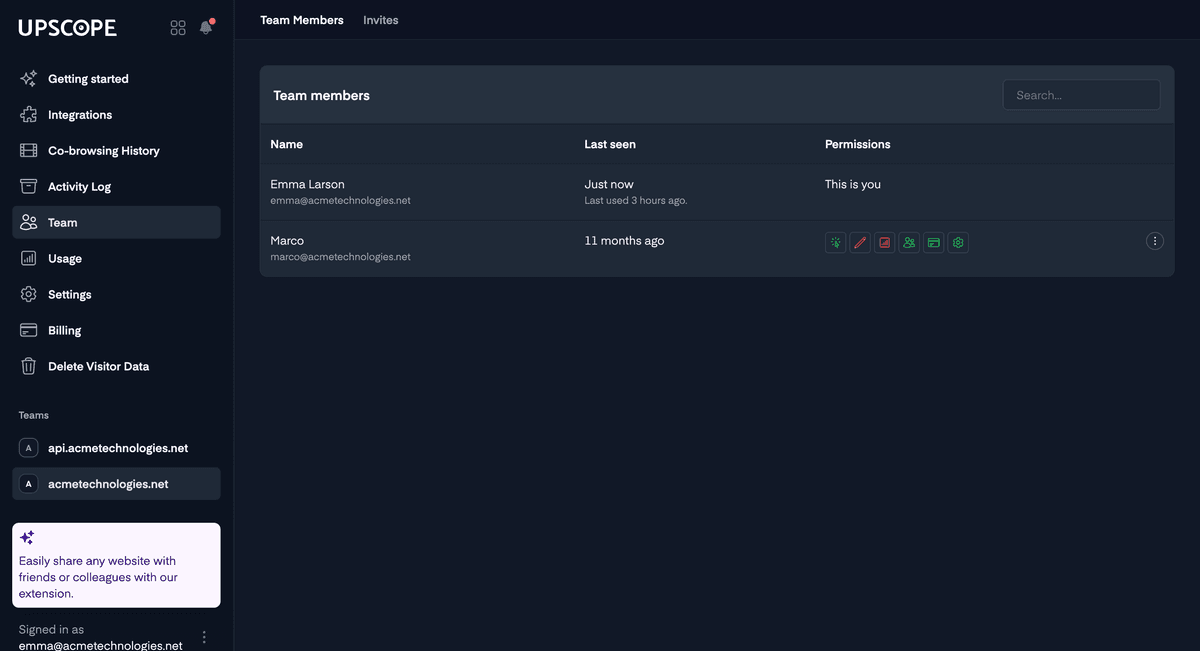
You can choose to:
- Directly invite them by entering their email into the
Teamsection in the left-hand menu. - Alternatively, enable the option in your general settings to let anyone with the same domain name sign up without an invite. For example, if you work at Snap.com, anyone with an email address @snap.com can sign up themselves once this option is enabled.
Add Teammates Without Being Charged
If you're on a payment plan with a set number of agents, you can still add additional teammates for managing team members or billing without extra charges. They're only counted as agents if they actively screen share.
Changing Team Owner
If you'd like to transfer your team's ownership to another user, the team owner can select
Team from the left-hand menu, click on the three dots to the right of the team members name they want to transfer ownership to, and click the button Transfer Ownership.
You will receive an email where you can confirm the transfer, and then you'll be converted to a regular user.Team Access Levels

Not all team members require the same type of permissions. If you're a team owner, you can set up team permissions and assign specific access to team members within your LiveDocument app.
To do this, go to Team on the left-hand menu. Beside each team member, there are 8 icons indicating the types of permissions. To activate or deactivate each one, simply click on it to turn it green or red.
Icon Descriptions
- LiveDocument usage: User can create Livedocument links.
- Content: User can manage team's templates and shared content.
- Reporting: User can view reporting and usage analytics.
- User Management: User can manage the team's users.
- Billing: User can pay for the team and manage the billing settings.
- General Settings: User can access general settings and make changes.