How to get a video into a PDF file (and why it usually breaks)
You can put a video into a PDF file. Adobe has supported it for years, the steps take about ninety seconds, and nothing about the process is difficult. The problem starts after you hit send. If you only need to attach other files, see how to embed files into a PDF.
I have done this more than once. Years of growth roles at DataBees and WaterFull, sending decks and reports to people I had never spoken to, and at some point you think: this would land so much better if they could hear me explain page four. So you embed the video, you attach the PDF, and the person opens it in Chrome and sees a grey rectangle where your face should be.
That is the whole story of video in PDFs, really. It works in one application and quietly fails in most of the others. Below is the literal method, an honest account of where it breaks, and the two routes I use instead.
Putting a video into a PDF file, the literal method
The tool for this is Adobe Acrobat Pro. Not Reader, not Preview, not the free online converters.
- Open the PDF in Acrobat Pro.
- Go to Tools, then Rich Media, then Add Video.
- Drag a box on the page where you want the video to sit.
- Point it at an MP4 on your machine or paste a URL.
- Set a poster image, which is the still frame people see before they press play.
- Save.
Adobe's own documentation on adding rich media to PDFs walks through the same flow with screenshots if you want to follow along.
Two things to know first. The video now lives inside the file, so the file gets heavy fast. A couple of minutes of 1080p footage is usually tens of megabytes on its own, enough to bounce off a mail server capping attachments at 25MB. And updating the video later means redoing the embed and resending a new file, which is fine once and miserable by the fourth revision.
The video plays where Acrobat is doing the rendering, and nowhere else
An embedded video in a PDF is a rich media annotation. Something has to know how to interpret that annotation and play the file inside it. Adobe Acrobat and Adobe Reader on desktop do. Most of the software your recipient is actually using does not.
Think about how a proposal gets opened in real life. It arrives in Outlook on a work laptop. The reader clicks the attachment, and it opens in the Outlook preview pane or in Chrome's built-in PDF viewer, because that is what the file association points at. Chrome draws the page, draws your poster image, and stops there. It does not show a player and it does not tell anyone why. The reader assumes it is a picture, scrolls past, and you never find out.
Same result in Firefox, in macOS Preview and Quick Look, in the Files app on an iPhone, and in Google Drive's preview. At the time of writing, none of them play embedded video.
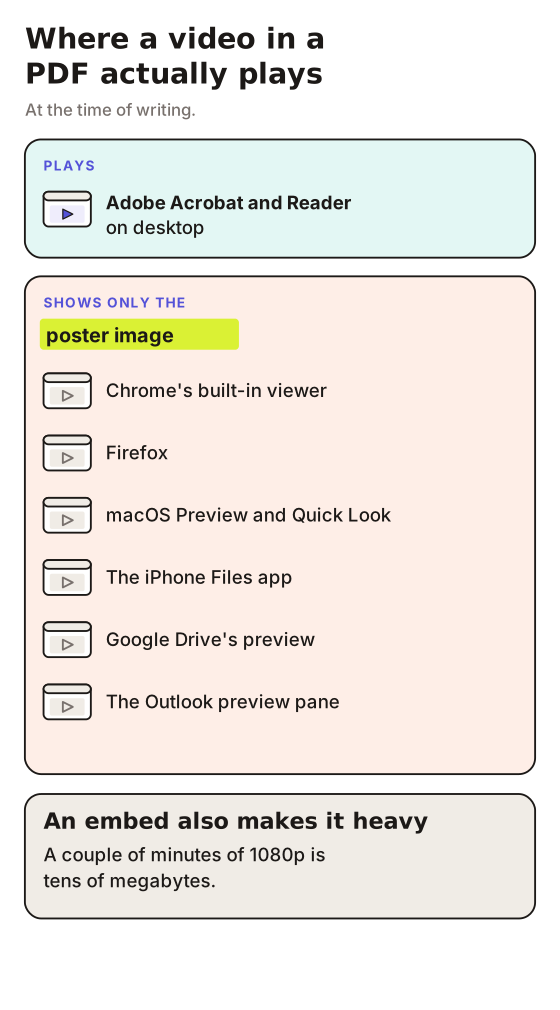
So the honest framing is not that PDFs support video. Acrobat supports video, and a PDF is a container that can carry it there.
What most people actually ship is a poster frame
If your recipient is not in Acrobat, the only part of your embedded video that reaches them is the poster image. A still frame with a play triangle over it. Which means you have shipped a screenshot of yourself, in a file that is now 40MB, and you have communicated nothing you would not have communicated with a plain PDF.
Worse, the play triangle actively misleads them. They click it, nothing happens, and now the document feels broken. I would rather send a clean static PDF than one that appears to be malfunctioning. The short version of all this is in can you put a video into a PDF.
If you genuinely need a single self-contained file that works with no internet connection and you can guarantee the recipient opens it in Acrobat, embedding is the right call. Internal training decks in a company that standardises on Acrobat, for instance. Outside that, the odds are against you. I have written up the mechanics of the embed route in more detail in adding video to a PDF and how to insert video in a PDF if you want the full walkthrough.
A linked thumbnail is the low-effort fallback
The version that works almost everywhere is boring, and I have used it plenty.
Take a screenshot of your video's first frame, drop it into the document as an image, and hyperlink that image to the video hosted somewhere sensible. YouTube unlisted, Vimeo, Loom, wherever. Hyperlinks in PDFs are supported basically universally, so the click works in Chrome, in Preview, on a phone, in Drive.
The trade is that you have thrown your reader into a different tab. The sequencing you carefully designed collapses the moment they land on YouTube next to a sidebar of suggested videos, and you learn nothing about whether they watched or came back.
Fine for a newsletter. Thin for a proposal worth real money.
Hosting the video and the PDF together is the version that survives
The route I ended up building, after enough of the above, was to stop treating the video and the document as two separate objects.
LiveDocument takes a PDF or an image, attaches a recorded video walkthrough to it, and gives you one link. The recipient opens the link in whatever browser they already have, no download, no plugin, no Acrobat. You can add clickable highlights so a line in the video jumps them to the right section, and you get page-level analytics telling you how long they spent where.
The honest limits, in the same breath: it is not a PDF editor, so the video is not welded into the file. It does not produce a self-contained document that works on a plane with the wifi off. And if your requirement is genuinely a single file with the video inside it, embedding via Acrobat is still your only option, grey rectangles and all. I would not pretend otherwise.
For most sending situations that is a trade worth making, because the thing you actually wanted was never a heavier file. It was for the person on the other end to hear you explain page four. More on the shape of that in sharing a PDF with a video walkthrough.
FAQ
Can you put a video into a PDF file for free?
Not with Adobe's tools. Embedding rich media needs Acrobat Pro, which is a paid subscription. Free PDF editors will let you add a hyperlink to a hosted video, and that route works in more viewers anyway, so it is not much of a compromise.
What video format works in a PDF?
MP4 with H.264 encoding is the safe choice, and it is what Acrobat expects. Older PDFs sometimes carry Flash-based media, which no current viewer will play at all.
Why does my embedded video not play in Chrome?
Chrome uses its own built-in PDF viewer rather than Acrobat, and that viewer does not implement rich media annotations. It renders your poster frame and skips the video. Nothing is wrong with your file, it is just being opened by software that does not know what to do with that part of it.
Does the video still work if I email the PDF?
The file will arrive if it is under the recipient's attachment limit, which is often 25MB. Whether the video plays depends entirely on what they open it with, and most people are not opening attachments in Acrobat.
Is it better to link the video or embed it?
Link it, in almost every case where you are sending to someone outside your own organisation. Embedding only makes sense when you control the software on the other end and the file has to work offline.
I spent a long time trying to make PDFs do something they were never really built for. Eventually I built LiveDocument instead, because what I wanted was never a bigger file. It was to be in the room.
About the Author
Cameron JamesCameron is the founder of LiveDocument. He writes about sharing documents, PDFs, decks and contracts, and why pairing a video walkthrough with a document beats sending it cold.