The best way to send multiple files via email
The best way to send multiple files via email is almost never to attach multiple files to an email.
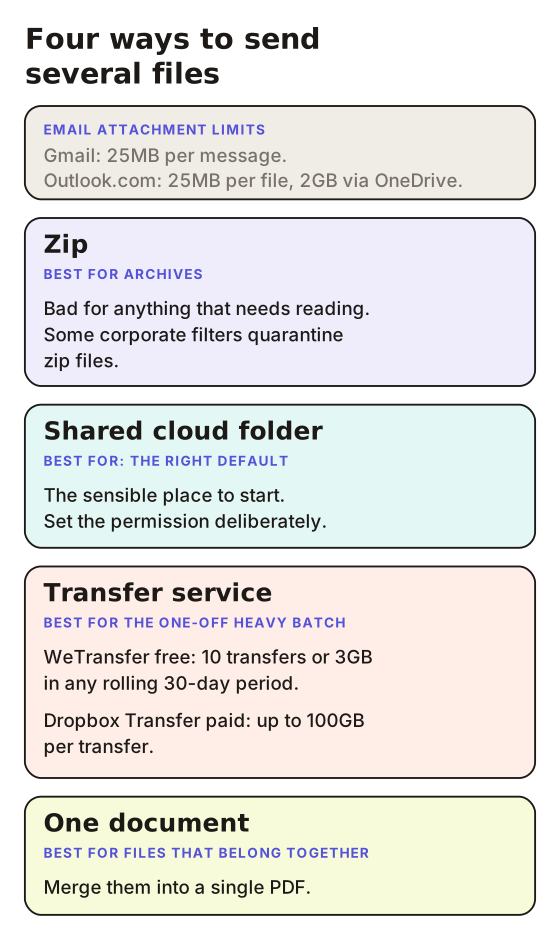
That sounds like a dodge, so let me be specific about why. Attachments are capped, they arrive as a pile of things the recipient has to sort out themselves, and the second they land you have lost control of the versions. Gmail stops at 25MB per message, and if you go over it, Gmail removes the attachment and adds a Google Drive link instead. Outlook.com does something similar: 25MB for a normal file attachment, up to 2GB if you share it from OneDrive. Your email provider has already decided that past a certain point you are sending a link, whether you wanted to or not.
There is a second cap that catches people out. Attachments get encoded for transit, which makes them take up more room in the message than they do on your hard drive. So a folder that reads as 24MB in Finder can still bounce off a 25MB limit. If you have ever had a message rejected by a file that looked like it should fit, that is why. On a Mac, the Mac-specific options get round most of these caps without signing up for anything.
Pick the method by what the recipient has to do
Size is the obvious question and the one everybody starts with. It is the less useful one.
The better question is what the person on the other end is supposed to do with these files. Store them? Review one of them and ignore the rest? Read them in a particular order, and understand something by the end? Those are three different jobs, and the method that suits one is actively annoying for the others.
Zipping works for archives and badly for anything that needs reading
Zipping is the reflex, and for a genuine batch of files it does the job. It keeps folder structure, it compresses reasonably well on text and documents, and every operating system can open one without extra software.
Where it falls down is human. A zip tells the recipient nothing about what is inside it or which file matters. Phones handle them awkwardly. And some corporate mail filters quarantine zips by default, especially from an external sender, so your carefully packed archive can quietly never arrive. I have written more on sending zip files and on hosting a zip as a link if that is the route you are taking.
Compression will not save a large batch either. Photos, video and PDFs with images in them are already compressed, so a zip of those files comes out roughly the same size it went in.
Transfer services suit the one-off heavy batch
WeTransfer, Dropbox Transfer and similar are built for exactly one case: a big batch, sent once, to someone who does not need an account. Files expire, which is a feature if you were never going to maintain them anyway.
Check the free ceilings before you plan around them. WeTransfer's free plan covers up to 10 transfers or 3GB in any rolling 30-day period, which is a monthly allowance rather than a per-send cap. Dropbox Transfer's paid plan goes up to 100GB per transfer, with a considerably smaller limit on the free account.
One document with the rest attached to it
This is the option most people never consider, and it is often the correct one.
If those five files are really one thing, a proposal with its supporting schedules, a report with its appendices, a set of drawings with a covering note, then sending five separate files makes the recipient do assembly work that you should have done. Merge what belongs together into a single PDF, or send the main document and put the supporting material behind it.
Where LiveDocument fits, and where it does not
When the batch is genuinely a set of files to store, use a cloud link and stop reading here. Drive does this for free and does it well.
Where I would do something different is when the files have to be understood rather than filed. Sending a client four documents and hoping they read them in the right order is optimistic. This is the problem we built LiveDocument for: you attach a recorded video walkthrough to a PDF or an image, share it as a single link rather than an attachment, add clickable highlights that jump the video to the relevant section, and then see page-level engagement analytics showing what people actually spent time on. Being straight about the limits: it is not storage, it is not a folder, and it handles PDFs and images rather than arbitrary file types, so a batch of spreadsheets and CAD files is a Drive job, not ours. The access control is link expiry and revocation, with no watermarking.
If you want the plain version of getting one file to someone as a URL, file to URL covers it without the product pitch.
What I would actually do
Under 20MB, and the files are unrelated: attach them and get on with your day. Not everything needs a system.
Over that, or more than about four files, share a cloud folder with a name that explains itself and a one-line email saying which file to open first. That last part is free and almost nobody does it.
And when it is a proposal, a pitch, or anything where the reading order changes the outcome, send one document with your voice on it rather than five that arrive as homework.
FAQ
What is the maximum number of files you can attach to one email?
There is rarely a hard count. The binding limit is total message size: 25MB on Gmail, and 20MB on Outlook.com, counting the message and attachments together. Less in practice, because of encoding overhead. Twenty small documents will send; two large ones may not. For a single document, how to send a PDF to an email has the steps.
Is it better to zip files or send a link?
Send a link for anything over about 20MB, anything the recipient may need updated, or anything going to a corporate address where zips get filtered. Zip when you are sending a genuine archive that needs its folder structure kept intact.
How do I send multiple large files via email for free?
Use the free tier of a cloud drive and share a folder link, or a transfer service within its free allowance. Both keep you under your provider's attachment cap, because you are sending a URL rather than the files themselves. For video specifically, sending large video files by email has the size-specific detail.
Do zipped files reduce quality?
No. Zip is lossless, so what comes out is byte-identical to what went in. It just will not shrink files that are already compressed, which includes most photos, videos and image-heavy PDFs.
Worth saying plainly
Most people ask how to get five files through an email gate. Whether the person on the other end will know what to do with them once they arrive matters more.
If the answer is no, the format is the problem, not the file size. That is the bit LiveDocument was built to fix.
About the Author
Cameron JamesCameron is the founder of LiveDocument. He writes about sharing documents, PDFs, decks and contracts, and why pairing a video walkthrough with a document beats sending it cold.